Overview
What’s this all about then?
P4W has been around since 1998. In fact, many of you may remember us celebrating P4W’s 21st birthday at the last Tikit NUG in 2019. In that time, a huge amount of functionality has been added and a lot has been forgotten about along the way.
For firms newer to P4W, they will probably be unaware of numerous functions that can make a significant difference to the user experience whilst shaving off valuable time in getting to the information or functionality needed.
Having worked with P4W for 20 years and always sought the best way to demonstrate its functionality, it’s fair to say, I’ve probably got as good an understanding of it as anyone else out there; especially from a best use case perspective.
It was during a lunchtime conversation at the recent Accesspoint Innovators Forum that it became clear to me that even some of those firms who have been using P4W for most of its life were still unaware of some simple, but highly-effective functionality available as standard. As a result, we thought that it would be really helpful to the P4W community if we provided a series of short articles on how to make the software easier to use and Higgsy’s Handy Hints is the result!
So, let’s kick off with some quick wins to get us going…
What The F?!
- F2: If you enter part of the client code into the relevant field when accessing a client record throughout P4W, F2 will list all the clients with codes starting with the letter or letter sequence you have entered from which you can then click on the appropriate client to fill in their details. (Please note that this only works with alpha-numeric client codes.) F2 will also display the live matters for an entity in Case Manager and on the Manual Timesheet once you’ve entered the entity code.
- F3: This function key offers different outcomes depending upon where you are in P4W as follows:
- In financial postings, F3 will enter the last client used on a new posting.
- In time postings, the same occurs.
- In Case Manager, F3 calls up the Bighand application to commence a dictation. (In light of the absence of any update to the Bighand API; thus limiting P4W’s integration to v4 of Bighand, I suspect most firms will have moved on to the later versions of Bighand and, therefore, this will have little use nowadays.)
- F4: In financial and or time postings will automatically enter the last client and matter used into the new posting.
- F5: This will refresh the Case Manager and Financial Ledger screens without having to exit that matter and come back to it. This is helpful if you want to see the latest position and have perhaps had one of those screens open on a matter for some time.
- F6: This is a great time saver as it will list the recent matters that you have accessed in P4W. The number of items shown on the list can be adjusted with 500 being the maximum. The default is usually 30, so if you’ve been using this, but would like a longer list, then just ask your P4W administrator to adjust this in Systems Settings: General\Matter Maintenance\Number of Recent Matters to Keep. In the same location, there is also an option to adjust the number of Recent Steps visible in the Task Panel. NB: These are System Settings so will apply to all users once adjusted. F6 can be used wherever you are being asked to enter a client/matter code in P4W; e.g. Time Recording, Posting, Partner Mail etc. Given that most lawyers and support staff will tend to work with the same subset of their most active matters, then this can be a real time saver. In essence, it’s the same as the Recent Matters function in the Task Panel, but a quick press of F6 is a much more efficient alternative; especially for those who don’t use the Task Panel.
- F7: This calls up the Quick Step function in Case Manager. For those of you who perhaps use Case Manager at entity level (as I did all the time at Tikit) please note that this function is limited to matter level Case Manager. Believe me, I did try!
- F8: Calls the Posting Slip screen from within Case Manager and pre-populates the slip with the current client/matter details.
- F9: From the Case screen, this opens a view of any Linked Matters that may exist; e.g. a linked sale matter to the current purchase matter open.
- F10: Calls the Data Mining function aka searching within Case. Again, if called via F10, the search will default to the current client and matter, but you can change this before running the search. Whilst I hear that firms are still experiencing issues with the Content Crawler engine in P4W, there is a lot of value from the other search tabs available in Data Mining and I will cover these in a separate searching article at a later date.
- F11: For users of the P4W Digital Dashboard with a saved set of reports, F11 will call the saved dashboard to screen and close it when pressed again.
- F12: This opens File Viewer against the highlighted document in Case Manager; enabling a quick preview of the document rather than opening it in its native application such as Word. It’s quicker and doesn’t add anything to the Step History audit trail.
Recognising that for most people it’s difficult to remember all of these, an additional function was added to Case Manager some time ago to help. If you right-click in the white space at the bottom of the active Case screen, you will be provided with a list of the available F keys which can be used within Case Manager. These are also dynamic, so if you click on them, the function will be activated. The screenshot below illustrates and note the option to Display Client Balances:
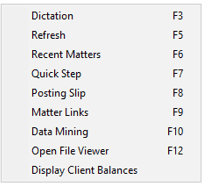
On a busy matter where the user has to scroll through several screens worth of transactions, it is sometimes a little challenging to find the white space at the bottom on which to click, but persevere and it’ll be worth it……or perhaps just print the list off and stick it on the side of your monitor!
Whilst in Case Manager, there are several other shortcuts available which are worth highlighting as follows:
- Alt S to Insert a Step. Inserting a new document or action into the Case file.
- Alt F to insert a Freestyle Step. Inserting a non-document, non-standard item. Typically used for adding a note and or an ad hoc reminder.
- Alt T to take a Step. Process the highlighted action or document.
- Alt C to Complete a Step. Complete the highlighted action or document. The difference between Take and Complete can sometimes be confusing to users and in fact, where a step doesn’t have a follow-up action, they are in effect the same thing. However, if taking the step invokes a secondary action such as a reminder, then completing the step will mark the reminder action as having been completed and, in workflows, the next action in the process will be triggered.
So there you go. Hopefully, there’s something in here that you didn’t know about, but would be really useful for you and your colleagues. I certainly don’t profess to know everything about P4W, so if any of you know of any other useful shortcuts available that aren’t covered above, please do share in the comments. After all, we’re here to collaborate and learn from each other so we can all get the best out of P4W.